Balance Forward Billing is just a new name of "Consolidation Invoice billing" in Release 12, which provides enhanced billing options with a more complete and flexible solution.
Lets try to create the basic setups required for Balance Forward billing and have a sample run.
Step 1: Create the Balance forward billing Cycle.
Navigate to : Receivables => Setup => Print => Balance Forward Billing Cycles
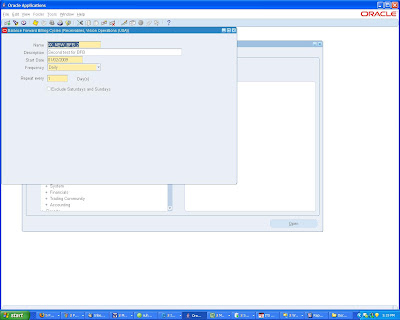
1. Enter the name, description, start date, and frequency of the balance forward billing cycle.
2. Enter the frequency of the balance forward billing cycle: daily, weekly, or monthly.
To define daily cycles:
1. Enter the number of days the billing should repeat.
2. (Optional) Select Exclude Saturdays and Sundays.
To define weekly cycles:
3. Enter the number of weeks the billing should repeat.
4. Select the day of the week the billing should occur.
To define monthly cycles:
5. Enter the number of months the billing should repeat.
6. Select the day of the month the billing should occur.
Billing can occur on more than one day. For cycles with a billing day between 29 and 31, Receivables considers the last day of the month as the billing day for months with fewer days.
7. Select either All Days or Exclude Saturdays and Sundays
The importance of creating a Balance Forward Billing Cycle is as below:
• To determine the billing date of a balance forward bill.
• To select the transactions to include in the balance forward bill.
Step 2: Define Balance Forward Billing Payment Terms.
Navigate to : Receivables => Setup => Transactions => Payment Terms
We can define balance forward payment terms to bill customers periodically (daily, weekly, or monthly) at the account or site level using balance forward billing. The balance forward bill for a billing period shows the previous balance carried over from the last billing period, payment received, current charges and activities, and current total outstanding balance.
1. If you want to use a payment term for balance forward billing, select an appropriate balance forward billing cycle from the Billing Cycle LOV.
Note: You cannot update the billing cycle, once a balance forward billing payment term is attached to a profile.
Because balance forward bills cannot be split across installments, in the case of a balance forward payment term:
o Any value entered in Base Amount defaults to 100.
o Installment Options becomes disabled and any data entered before selecting a cycle defaults to Include tax and freight in first installment.
o You can populate only one row in the Payment Schedule section and the Sequence Number and Relative Amount values for the row default respectively to 1 and 100.
o Date Due becomes disabled. However, you can populate Days, Day of Month, and Months Ahead.
Note: You cannot change existing payment terms from regular payment terms to balance forward billing payment terms and vice versa.
Step 3: Enable Balance Forward Billing
Enabling balance forward billing is a two step process:
• Setting Up Customer Profile Classes
• Setting Up Account and Site Profiles
Depending on setup, customers can generate balance forward bills consolidated at either the account or site level:
Step a: Setting up Customer Profile Classes for BFB
Navigate to : Receivables => Customer => Profile Classes

In the Balance Forward Billing region, select Enable.
Note: When we select Enable, Bill Level and Type become required and the Payment Terms list of values displays only balance forward billing payment terms. If you do not select Enable, then Bill Level and Type are not required and the Payment Terms list of values displays only non-balance forward billing payment terms
Not selecting Override Terms ensures that all transactions for a particular customer account or site share the same balance forward billing payment term, due date, and aging.
Step b: Setting Account and Site Profiles for BFB
Navigate to : Receivables => Customer => Customers
 The profile is attached at the Account Level. This is indicated in the screen shot below.
Important: We must enable balance forward billing for a customer both at the account and site profile level in order for Receivables to pick any transactions of the customer. If balance forward billing is enabled at the site profile level but not at the account profile level, the application does not recognize the site as a balance forward billing site. Although transactions for the site continue to inherit the balance forward billing payment term, Receivables never picks them up.
Profile Class is attached at the Site Level also.

Change the System Option Settings to enable the Billing Number to be displayed in the Transactions screen.
Navigate to: Receivables => Setup => System => System Options

In the Trans and Customers Tab, check ‘Show Billing Number’.
Once done, create a transaction with the same customer. The important point to note here is to have the transaction with the same Payment Term. The payment term should be the one attached with the Billing Cycle. Also, ensure that the transaction has the Print option (More tab) set to ‘Print’. The transactions marked with ‘Do Not Print’ are not included in the Balance Forward Billing program.
 now, the next step is to Run the ‘Generate Balance Forward Bill program’
 The output for the program is as shown below.
 When the transaciton is queried, we can see the Consolidated Billing number generated in the Transaction, just besides the Transaction Number.

The following tables are involved in the creation of a Balance Forward Billing Program.
AR_CONS_BILL_CYCLES_B
AR_CONS_BILL_CYCLES_TL
AR_CONS_BILL_CYCLE_DATES
AR_CONS_INV_ALL
AR_CONS_INV_TRX_ALL
AR_CONS_INV_TRX_LINES_ALL
Note: This also refers the payment terms table where the Bill_Cycle_ID is used.